React Native Gesture Responder System #
Design is not just what it looks like and feels like. Design is how it works.
用户和软件的唯一“触点”就是交互行为——鼠标事件、触摸事件、手势,决定了用户能不能顺利把“想做的事”变成“软件真的帮他做到”。处理好这些事件,就是在直接放大产品的可用性、效率和信任感;处理不好,再强大的功能也会被用户放弃。
因为刚接触手机开发,所以有必要了解 React Native Gesture Responder System。
常见触屏操作 #
tap #
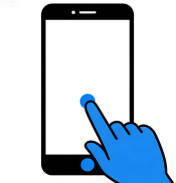
点击操作,用单根手指(通常是食指)快速轻触屏幕后立即抬起,手指在屏幕上几乎没有位移
pan/drag #
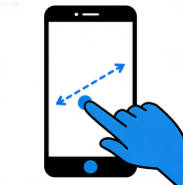
拖动操作,用单根手指按住屏幕上的某个元素(如图标、滑块、窗口),保持按压状态并沿指定方向移动,移动完成后再抬起手指。
pinch/zoom #
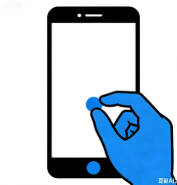
捏合缩放操作,用两根手指(通常是拇指和食指)同时放在屏幕上,要么向中间收拢(捏合,缩小内容),要么向两侧张开(张开,放大内容)。
swipe #
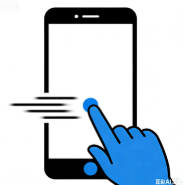
滑动操作,用单根手指在屏幕上快速朝某个方向(左 / 右 / 上 / 下)滑动一段距离后立即抬起,手指不与任何元素绑定。
rotation #
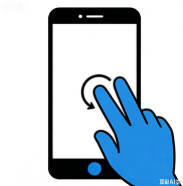
用两根手指(通常是拇指和食指)同时放在屏幕上,以某一点为中心,顺时针或逆时针同步转动手指。
React Native Gesture Responder System #
为了处理这些手势操作,RN 内置一套 Gesture Responder System。这套系统决定了:
- 一个组件是否应该响应手势操作
- 组件如何响应手势
- 监听每个手势的生命周期
核心 API #
- onStartShouldSetResponder:决定组件是否要响应“按下开始”这个触摸事件。
- onMoveShouldSetResponder:决定组件是否要响应“移动过程中的手势”(例如拖动、滑动)。
- onResponderGrant:当组件被选中成为“当前手势响应者”时触发(相当于“开始接管这次手势”)。
- onResponderMove:在手指移动过程中持续触发,用来追踪手指的移动轨迹或位置变化。
- onResponderRelease:当手指抬起、这次触摸结束时触发。
- onResponderTerminate:当这次手势被中断、响应权被别的组件或系统抢走时触发(例如手势被父级拦截、来电话等情况)。
示例:
<View
  onStartShouldSetResponder={() => true}
  onResponderGrant={() => setMessage("Touch Started")}
  onResponderMove={() => setMessage("Touch Moving")}
  onResponderRelease={() => setMessage("Touch Released")}
>
    <Text>{message}</Text>
</View>
react-native-gesture-handler #
react-native-gesture-handler: https://docs.swmansion.com/react-native-gesture-handler/docs/
react-native-gesture-handler 是一个用来处理复杂手势 的 React Native 库,它把手势的识别逻辑放在原生 UI 线程里,而不是 JS 线程里。为什么使用 react-native-gesture-handler 的另一个原因是原生的 api 处理一些常规操作比较麻烦,例如我们需要监听 drag 操作,触发 event handler,需要自己组合多个 api 判定是否触发了 drag 操作然后决定是否调用 handler。
我将通过一个示例说明这个库的使用方法。
可以将示例代码复制到 https://snack.expo.dev/ 运行,查看效果。(注意,需要在 package.json 中添加 react-native-gesture-handler 依赖)
import React from 'react';
import { View, Text, StyleSheet } from 'react-native';
import {
  Gesture,
  GestureDetector,
  GestureHandlerRootView,
} from 'react-native-gesture-handler';

class App extends React.Component {
  constructor(props) {
    super(props);
    this.state = {
      lastEvent: 'None',
    };

    // 单击
    this.singleTapGesture = Gesture.Tap()
      .numberOfTaps(1)
      .maxDuration(250)
      .onEnd((_e, success) => {
        if (success) {
          this.setState({ lastEvent: 'Single Tap' });
        }
      });

    // 双击
    this.doubleTapGesture = Gesture.Tap()
      .numberOfTaps(2)
      .maxDelay(250)
      .onEnd((_e, success) => {
        if (success) {
          this.setState({ lastEvent: 'Double Tap' });
        }
      });

    // 双击 / 单击(二选一)
    this.tapGestures = Gesture.Exclusive(
      this.doubleTapGesture,
      this.singleTapGesture,
    );

    // 长按
    this.longPressGesture = Gesture.LongPress()
      .minDuration(500)
      .maxDistance(10)
      .onEnd((_e, success) => {
        if (success) {
          this.setState({ lastEvent: 'Long Press' });
        }
      });

    // 单指 pan
    this.panGesture = Gesture.Pan()
      .minPointers(1)
      .maxPointers(1)
      .minDistance(5)
      .onStart(() => {
        this.setState({ lastEvent: 'Pan start' });
      })
      .onUpdate(() => {
        this.setState({ lastEvent: 'Panning...' });
      })
      .onEnd(() => {
        this.setState({ lastEvent: 'Pan end' });
      });

    // pan / longPress(二选一,互斥)
    this.panOrLongPress = Gesture.Exclusive(
      this.longPressGesture,
      this.panGesture,
    );

    // 双指缩放 pinch
    this.pinchGesture = Gesture.Pinch()
      .onStart(() => {
        this.setState({ lastEvent: 'Pinch start' });
      })
      .onUpdate(() => {
        this.setState({ lastEvent: 'Pinching...' });
      })
      .onEnd(() => {
        this.setState({ lastEvent: 'Pinch end' });
      });

    // 最终组合:pinch + (pan or longPress) + (double / single tap)
    this.composedGesture = Gesture.Simultaneous(
      this.pinchGesture,
      this.panOrLongPress,
      this.tapGestures,
    );
  }

  render() {
    const { lastEvent } = this.state;

    return (
      <GestureHandlerRootView style={styles.root}>
        <View style={styles.info}>
          <Text style={styles.infoText}>Last event: {lastEvent}</Text>
          <Text style={styles.infoText}>
            Try: single tap, double tap, long press, pan (1 finger), pinch (2 fingers)
          </Text>
        </View>

        <GestureDetector gesture={this.composedGesture}>
          <View style={styles.box}>
            <Text style={styles.boxText}>Gesture Area</Text>
          </View>
        </GestureDetector>
      </GestureHandlerRootView>
    );
  }
}

export default App;

const styles = StyleSheet.create({
  root: {
    flex: 1,
    justifyContent: 'center',
    alignItems: 'center',
  },
  info: {
    position: 'absolute',
    top: 80,
    alignItems: 'center',
  },
  infoText: {
    fontSize: 16,
    marginBottom: 4,
  },
  box: {
    width: 250,
    height: 250,
    borderRadius: 16,
    backgroundColor: '#b58df1',
    justifyContent: 'center',
    alignItems: 'center',
  },
  boxText: {
    color: '#fff',
    fontSize: 18,
    fontWeight: '600',
  },
});
GestureHandlerRootView #
负责定义一个可以触摸的容器,这个容器就是一个 View,所以默认的 flex 属性为 1,表示其内部所有的孩子节点都支持接受手势信号。
GestureDetector #
在 GestureHandlerRootView 内部可以通过 GestureDetector 监听手势事件。
<GestureDetector gesture={this.composedGesture}>
  <View style={styles.box}>
    <Text style={styles.boxText}>Gesture Area</Text>
  </View>
</GestureDetector>
当手指在被 GestureDetector 包裹的 View 上滑过是,会触发 this.composedGesture 方法。
多手势同时触发 #
允许多种手势同时触发,通过 Gesture.Simultaneous 实现,例如:一边拖动图片一边缩放(Pan + Pinch)、旋转同时缩放(Rotation + Pinch)。
const gesture = Gesture.Simultaneous(panGesture, pinchGesture);
手势互斥 #
可以通过 Gesture.Exclusive 实现多个手势互斥:同一时间只允许一个手势成功,其他的会被取消。默认是谁先识别成功谁赢,通常写在前面的手势优先级更高,用于有冲突的手势,比如单击 vs 长按、单击 vs 双击 等。
// 单机和长按互斥
const tap = Gesture.Tap().onEnd(() => console.log('tap'));
const longPress = Gesture.LongPress().onEnd(() => console.log('long press'));
const gesture = Gesture.Exclusive(tap, longPress);
(完)